How to make an app promo video in 8 steps
Pick one product moment, write text cards, prepare clean screens, storyboard each second, build one master edit, watch it muted, export a cut per placement, then decide whether to hire out. App Store previews follow separate Apple rules.
In this article
- How to make an app promo video in eight steps
- How an app promo video differs from an App Store preview
- Step 1. Pick the product moment your video is about
- Step 2. Write the app promo video script as text cards first
- Step 3. Prepare the app screens before you record
- Step 4. Storyboard the video second by second
- Step 5. Build the master edit with motion that points at something
- Step 6. Watch your app promo video with the sound off
- Step 7. Export the master and a cut for each placement
- Step 8. Decide whether to make the app promo video yourself or hire it out
- Common mistakes when making an app promo video
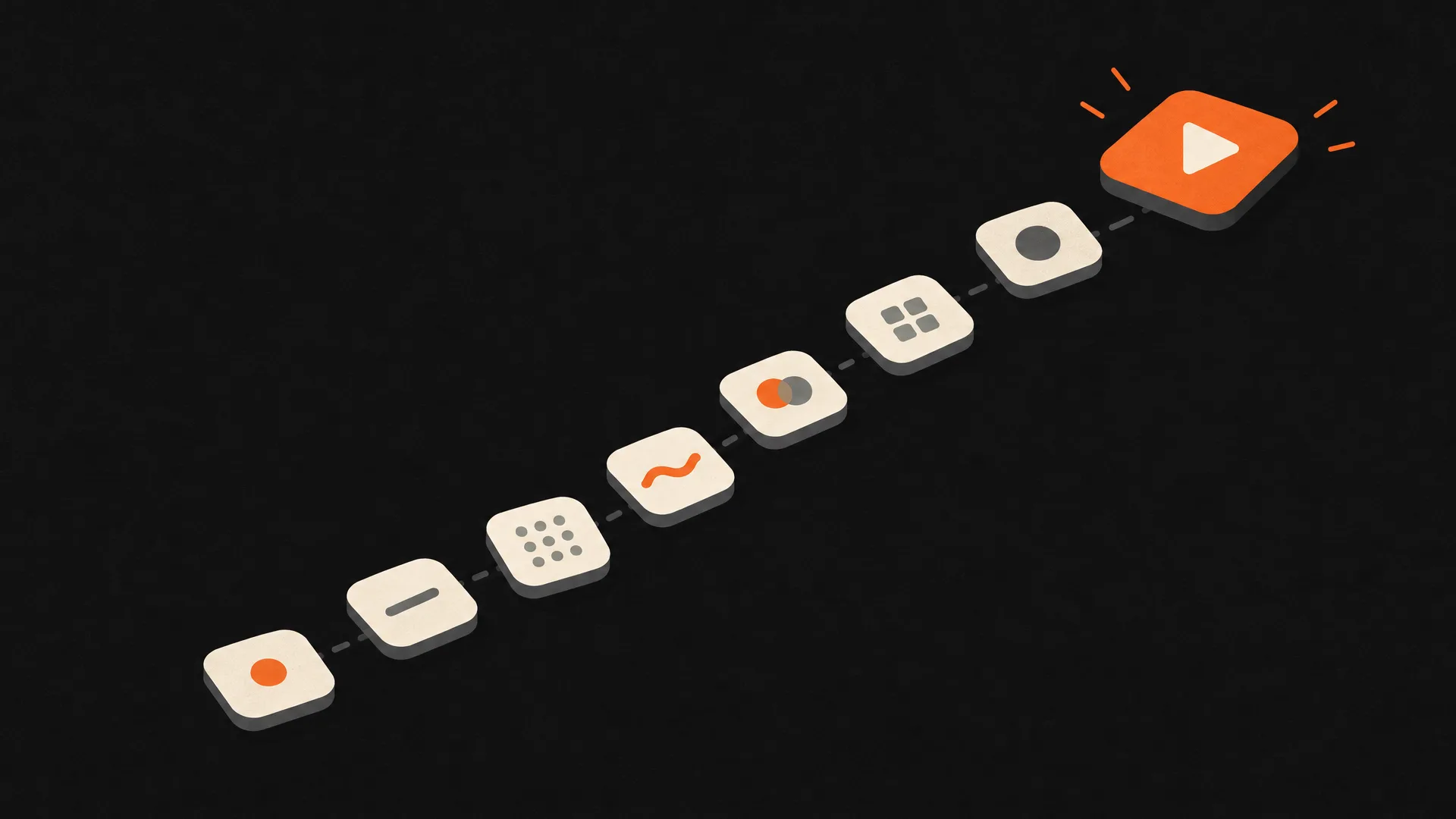
How to make an app promo video in eight steps
To make an app promo video, pick one product moment, write the text cards, prepare the screens, storyboard every second, build one master edit, watch it muted, export a cut per placement and decide whether to hire out. Each step ends with a concrete output, and you move on only when you have it.
| Step | Output that ends the step |
|---|---|
| 1 Pick the product moment | One sentence ("[Outcome] for [who]"), one audience, the first placement named |
| 2 Script | A list of 6 or 7 text cards for 30 seconds, written before any voiceover |
| 3 Prepare screens | A demo account with realistic data and a rehearsed tap sequence |
| 4 Storyboard | A table with second, screen, motion, text card and sound |
| 5 Build | A master edit at the strictest placement's rules |
| 6 Sound-off check | Watched once muted, with notes on any card that needed sound |
| 7 Export | A list of files, one per placement, named by ratio and length |
| 8 Hire out or not | A decision, and if hiring, a brief |
How an app promo video differs from an App Store preview
A promo video for ads, your website, social posts or a launch can show anything you have the rights to. An App Store preview follows Apple's rules. As of November 2026, Apple's app preview guidance describes previews as showing your app "using footage captured on device," and App Review Guideline 2.3.4 says they "may only use video screen captures of the app itself," with narration and text overlays allowed. Google Play's preview video rules add a few of their own.
| App Store preview | Promo video (ads, website, social, launch) | |
|---|---|---|
| What can be on screen | Screen captures of the app only, plus text and narration overlays | Anything you have rights to, including device frames, illustrations and people |
| Animated screenshots | Not allowed | Allowed |
| Length | 15 to 30 seconds | Your choice per placement |
| Sound | Starts muted | Usually starts muted in feeds |
| Prices | Not allowed | Allowed where the ad platform allows |
| Call to action | The store page is the call to action. Google Play says no "Download now" | Allowed |
| Hands, people, device mockups | Not allowed | Allowed |
Make the promo video first and cut the store versions from it. If a preview comes back rejected, see why Apple rejects preview videos.
Step 1. Pick the product moment your video is about
Choose the one moment the whole video is built around, and write it as a single sentence in the pattern "[Outcome] for [who]."
Say your app is a budgeting tool. "See where this month's money went, for freelancers with irregular income" is a sentence you can build a video on. "An all-in-one finance app" isn't.
Name one audience, because a video for everyone has nothing specific to show. Name the first placement too (a paid social ad, your landing page or the store listing), since it decides the format and the rules you build to.
Then choose the feature. Ask three questions of each candidate:
- Is the result visible on one screen, such as a chart, a finished booking or a streak counter?
- Can a stranger understand it in about five seconds without sound?
- Does it show something the obvious competitor doesn't?
Pick the moment with three yeses, even if it isn't the most used feature.
Step 2. Write the app promo video script as text cards first
Write the script as a short list of on-screen text cards before you think about voiceover. For 30 seconds, that's six or seven cards, each carrying one idea from your step 1 sentence. Any voiceover comes later and follows the cards, so the video still makes sense when it starts muted.
Our 30 second script guide has the second-by-second blocks, along with word counts and a fill-in script template.
Step 3. Prepare the app screens before you record
Before you record, set the app up so it looks like a real person's account:
- a demo account with realistic data (believable names and numbers, no "Test User" or lorem ipsum)
- a clean status bar
- notifications turned off
- a rehearsed tap sequence that follows your text cards, so each move takes one clean take
Device settings, status bar commands and Android steps are in our guide to recording clean app footage. For a web app, fix the browser window to one size before you start, so every clip matches when you cut between them.
Step 4. Storyboard the video second by second
A timed storyboard sets out the screen, motion, text card and sound for each second. It catches problems before you edit, such as a card with no screen behind it or a screen with nothing to say.
The example below is for Streakly, a hypothetical habit tracker. Its timings follow the blocks in the 30 second script template.
| Seconds | Screen | Motion | Text card | Sound |
|---|---|---|---|---|
| 0 to 3 | Home screen, streak counter ticking from 29 to 30 | Slow push in on the counter | "30 days. Not one missed." | Music starts |
| 3 to 8 | Today list with three habits | Cut, items check off one by one | "Habits you actually keep" | |
| 8 to 13 | Adding a habit, picking a time | Highlight ring on the time picker | "Pick a time, get one nudge" | Soft tap sound |
| 13 to 18 | Reminder banner inside the app | Zoom to the banner | "One reminder, never ten" | |
| 18 to 22 | Weekly chart | Bars grow | "See the week at a glance" | |
| 22 to 27 | Streak celebration screen | Hold, light confetti from the app itself | "Day 30" | Music lift |
| 27 to 30 | App icon and name | Hold | Store cut: name only. Ad cut: "Try it free" | Music ends |
The last row splits in two. The store cut ends on the app name only, with no device frame and no call to action. Apple asks for no prices in previews, so keep any price wording, "free" included, out of the store version. The confetti in row six comes from the app itself and is recorded on screen, not added in the edit.
Step 5. Build the master edit with motion that points at something
Build one master edit to the strictest rules among your placements, and use motion only to direct the eye. A slow push-in on a counter, a highlight ring around a time picker or a tap indicator on the next button tells the viewer where to look. Spinning transitions and bouncing text have no target, so they compete with the screen.
Leave device frames out of the master. Add them only in the ad and website cuts. Apple's preview page also says not to film people interacting with a device, such as "fingers tapping the screen."
Two more Apple rules apply to the store cut. If features need an in-app purchase, a subscription or a login, "you must disclose this." For games, Apple's guidance is to "show more gameplay than cutscenes."
For music, use a track licensed for commercial use, not a popular song you haven't licensed.
Step 6. Watch your app promo video with the sound off
Mute the master and watch it once from the start, the way a stranger would. As of November 2026, Apple's app preview page says previews "play with the sound muted" by default, and Google Play's help page says the preview "may autoplay inline with muted audio up to 30 seconds."
Ask three questions as you watch:
- In the first three seconds, can you tell what the app is for?
- Does every card stay on screen long enough to read twice?
- On the last frame, is it clear what to do next (or, in a store cut, which app it was)?
Fix every card that needed sound to make sense. A separate guide covers making a video work with the sound off.
Step 7. Export the master and a cut for each placement
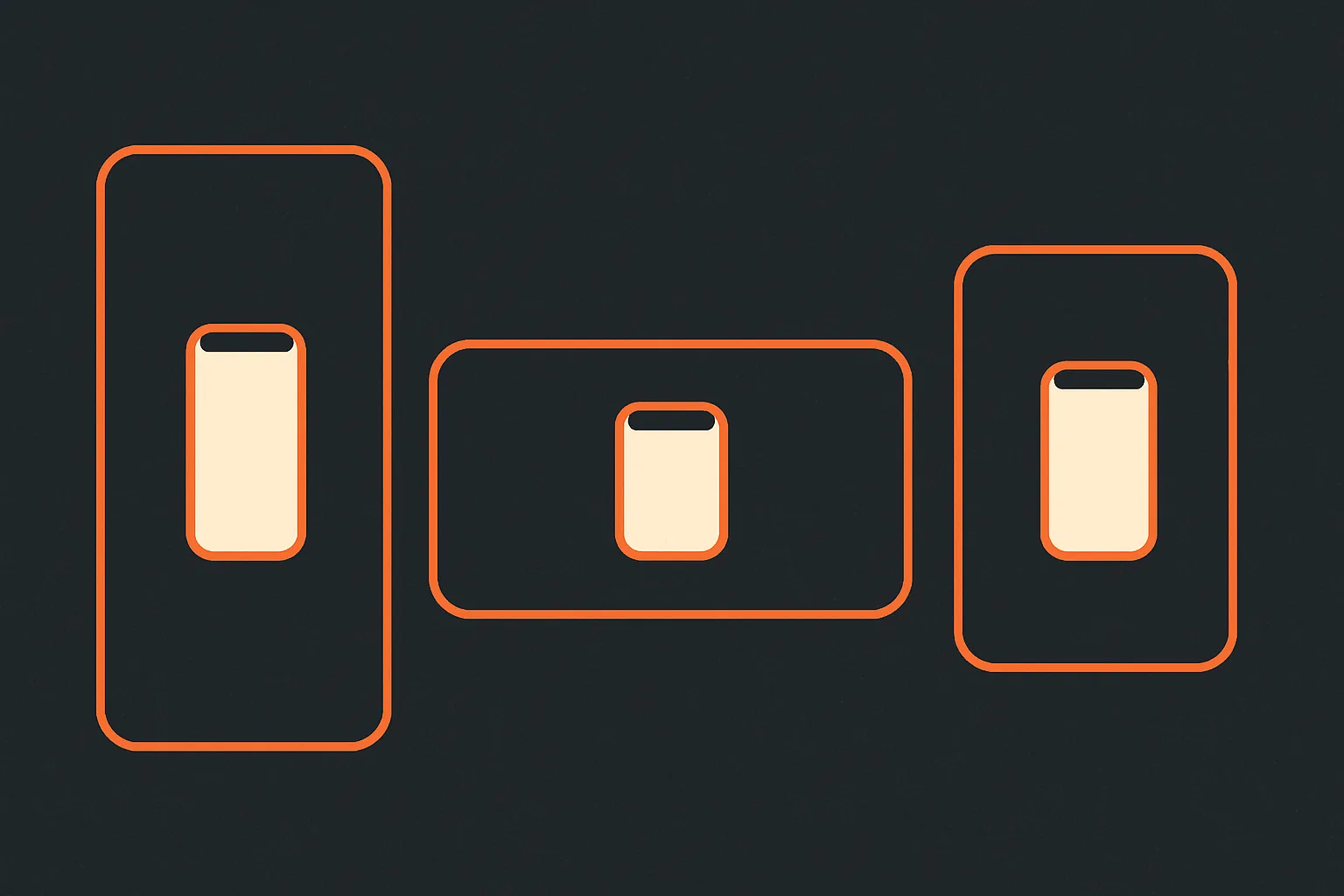
Export the master first, then one cut per placement, each named by ratio and length, for example streakly_9x16_30s.mp4. Our launch checklist covers the six launch cuts from one master and when to post each one, and the formats guide covers vertical, square and horizontal ratios.
Check two store specs before you export:
- As of November 2026, Apple's app preview specifications list 886 x 1920 portrait (or 1920 x 886 landscape) for current iPhones, at most 30 frames per second, at most 500 MB, and 15 to 30 seconds.
- According to Google Play Console Help (November 2026), Google Play takes a YouTube link rather than a file. The video needs ads disabled, must be public or unlisted, and must be embeddable.
Step 8. Decide whether to make the app promo video yourself or hire it out
Make it yourself when there is one placement and someone on the team edits, use a fixed-price studio when you need several formats by a launch date, and save an agency for a brand film or live action.
| Do it yourself | Fixed-price studio | Agency | |
|---|---|---|---|
| Whose time | Yours: recording, editing, music, exports | Yours for the brief and recordings; the studio edits | Mostly theirs, plus review meetings |
| What you need | An editor you know, a music source you can license, time for several exports | Screen recordings or a link, logo, colors, one sentence, a call to action | Budget and weeks for discovery, script and review rounds |
| Makes sense when | One placement, simple app, someone on the team edits | Several formats or a launch date, screens are ready, message is clear | Brand film, a new category to explain, live action or custom illustration |
| Not a fit when | You need six cuts by Friday | The message isn't settled yet | You need it this week, or the budget is under four figures |
For freelancer and agency ranges, see what studios and agencies charge.
appmotion is our studio, and it fits the middle column. As listed on our site in November 2026, fixed prices are $49 for 15 seconds, $79 for 30, $109 for 45 and $139 for 60. Every order includes the script, motion design, music and AI voiceover in 13 languages, or no voice if you prefer.
The first format is included. Each extra format is $25, or all four (9:16, 16:9, 1:1, 4:5) for $65. App Store preview videos are 15 or 30 seconds, in Full HD. The first version arrives within 24 hours of payment with a complete brief, and one revision round is included.
Whoever makes the video, you supply the brief: the sentence from step 1, the recordings from step 3, your logo and colors, and the call to action. If you'd rather skip the edit, send your screens and get a 30 second app promo video for a $79 fixed price.
Common mistakes when making an app promo video
- Showing every feature. One moment shown clearly does more than a tour of the menu.
- Opening on a logo. Open on the result and let the icon close the video.
- Leaving "Test User" and lorem ipsum in the account. Set up the demo account before you record anything.
- Writing for sound and adding captions later. Write the cards first and fit any voice to them.
- Putting "Download now" or a price in the master, then cutting the store version from it. Keep both in the ad cuts only.
- Recording before the interface is final. Any interface change after that means recording again.
Questions people ask
How long should an app promo video be?
Can I make an app promo video from screenshots?
Should an app promo video have a voiceover?
Do I need a different video for the App Store?
Topics: app promo video app trailer mobile app marketing app store preview video production
Written by
App Motion Team
The people who script, animate and deliver appmotion videos every day. What you read here is what we tell our own customers.
Plan a video for your launch.
Order a promo video online and get your first version within 24 hours.
Start your order